Guide
The 14 Google Workspace security settings every school district should check.
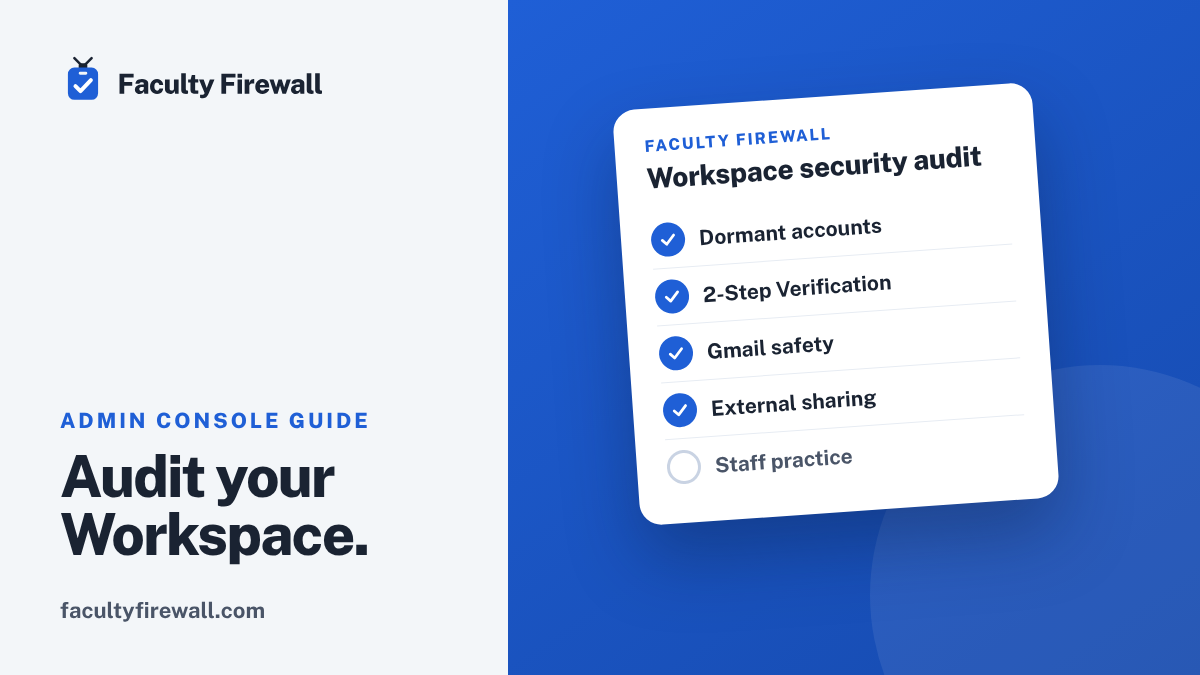
Most districts don’t get breached because someone did something exotic. They get breached because an everyday setting was left on its default and nobody looked. Here are the fourteen I check in my own Admin console, where to find each one, and what good looks like.
I’m a working K-12 technology director, and this is the walk-through I wish someone had handed me years ago. None of it costs money. All of it lives in the Google Admin console, and most of it takes a few minutes.
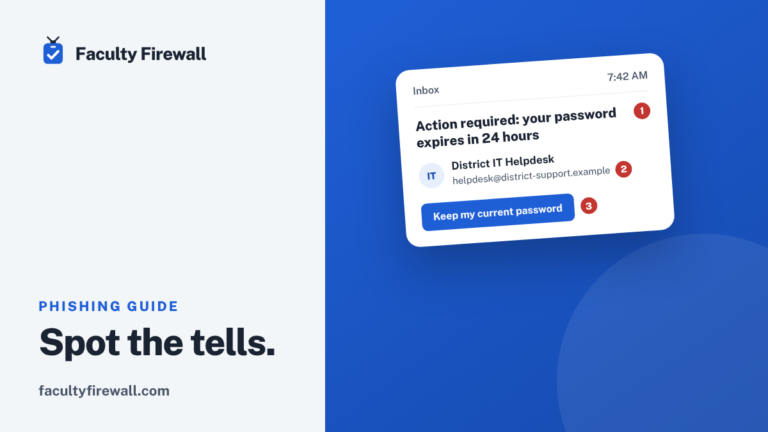
It matters more than it used to. Attackers now use AI to write clean, convincing phishing emails, so the old advice to watch for typos is finished. The FBI has warned that AI makes these messages harder to spot, and in Sophos’s 2025 education survey, phishing was the most common technical cause of ransomware attacks on schools. Your settings are the backstop for the days a message slips through.
Sign in at admin.google.com as a super admin and work down the list. Google moves menus now and then, so if a path below doesn’t match what you see, type the setting name into the console’s search bar. A few of the reports depend on your Workspace for Education edition.
Accounts.
1. Dormant accounts.
An unused account is the quietest way in. Nobody notices a login to a mailbox no one reads.
Where Directory > Users, sorted by the Last sign in column.
Good Every account that has gone 90 days without a sign-in has a reason, or it is suspended.
2. The people who left.
Offboarding is where access quietly piles up. A former employee’s live account is a standing risk, and their files need a new home.
Where Directory > Users, next to your HR list of departures.
Good No one who has left still has an active account, and their Drive files have a new owner.
3. Super admins.
The super admin role can do anything. The fewer people who hold it, and the less they use it for ordinary work, the smaller your blast radius.
Where Account > Admin roles > Super Admin.
Good Two to four named people. No shared logins, and nobody runs everyday email from a super admin account.
4. Shared logins.
Front office, library and athletics accounts tend to share one password that never changes. That is a password no one owns and everyone knows.
Where Your list of shared or role accounts.
Good Each one has a named owner. Where you can, replace the shared password with a Google Group or mail delegation.
Sign-in.
5. 2-Step Verification enrollment.
A password alone is one leaked credential away from a breach. 2-Step Verification is the single biggest thing you can do, and you can’t improve what you don’t measure.
Where Reporting > User Reports > Security, the 2-Step Verification enrollment column.
Good You know how many staff are enrolled, and the number goes up every month.
6. 2-Step Verification enforcement.
Enrollment that is optional stalls. Enforcement is what gets you to everyone, with a short runway for new hires.
Where Security > Authentication > 2-step verification.
Good Enforced for staff, with a brief enrollment window for new accounts.
7. How your admins sign in.
Admins are the high-value targets, and text-message codes can be intercepted. A security key or passkey can’t be phished.
Where Reporting > User Reports > Security, the Security keys enrolled column.
Good Every admin signs in with a security key or a passkey, not a text-message code.
Email.
8. Gmail safety settings.
Google can catch a lot before it reaches an inbox, but only if these protections are switched on.
Where Apps > Google Workspace > Gmail > Safety.
Good Protections are on for attachments, for links and external images, and for spoofing and authentication.
9. SPF, DKIM and DMARC.
These three records are how the rest of the internet knows a message really came from your domain. Without them, your district is easy to impersonate.
Where Apps > Google Workspace > Gmail > Authenticate email for DKIM, then run your domain through Check MX in the Google Admin Toolbox.
Good DKIM is on, and Check MX shows no SPF or DMARC errors.
10. A place for reports.
The whole point of awareness is that people report what they see. If there is nowhere obvious to send it, they won’t.
Where Your helpdesk inbox or a Google Group for suspicious email.
Good Staff know the one address to forward to, and someone reads it every school day.
Sharing and apps.
11. Sharing outside the district.
The default sharing rules decide how easily a document leaves your walls. Students usually need tighter limits than staff.
Where Apps > Google Workspace > Drive and Docs > Sharing settings.
Good A deliberate choice for each group, with tighter limits for students than for staff.
12. Third-party app access.
Every app a staff member connects can reach their Google data. Over a few years that list grows long, and some of it you have never heard of.
Where Security > Access and data control > API controls > App access control.
Good You know which apps can reach staff data. Unknown apps are blocked or limited.
13. Alerts.
Google will tell you about suspicious sign-ins and phishing, but only if a real person is reading the alerts.
Where Security > Alert center.
Good A named person receives and reads suspicious sign-in and phishing alerts.
People.
14. Whether your staff have actually practiced.
This is the check most audits skip, and it’s the one attackers are counting on. Settings slow an attack down. A staff member who pauses and reports stops it.
Where Your professional learning calendar for the last 12 months.
Good Staff had a short, no-shame awareness session and one safe practice email, and reports of suspicious email are going up.
Close the three that scare you most.
None of these cost a dollar. The gap is almost never budget. It’s that no one has had a quiet afternoon to look. Run the list once, fix the three that worry you most, give each a name and a date, and you have closed the doors attackers try first.
Then come back to number fourteen, because it’s the one that doesn’t live in a settings page. The strongest control in any district is a staff that reports the click instead of hiding it, and that only comes from practice.
Get the free Workspace audit.
Fourteen checks, where to click and what good looks like, on two printable pages. Free, no account to create.
And if number fourteen is your weak spot, the Faculty Firewall Kit is the staff-awareness side done for you: a month of deck, emails, safe practice phishing and posters, in one district license.
Sources
- Sophos, The State of Ransomware in Education 2025. sophos.com
- FBI San Francisco, warning on criminals using artificial intelligence, May 8, 2024. fbi.gov